




Shopify variants are the different versions of one product, like a beanie in White, Black, and Yellow. Each Shopify product variant can have its own photos. But if you sell in more than one language, those photos hide a problem. Any words written inside the image (labels, sizes, little notes) stay in the first language even after you translate the page. So a shopper in Germany can be on your fully German store and still see English text inside the picture.
This guide shows how to fix that: show the right photo for the right variant and the right language. The whole idea comes down to one line:
Which variant + which language = which photo.
We tried two ways to do it. One got messy fast. The other stayed simple. Here are both, and why we picked the simple one.
TL;DR
Text baked inside a photo doesn't get translated when you translate the page. To fix it, show a different photo per Shopify variant and language by naming each photo's ALT text Product Name || Variant || Language (e.g. Alpine Merino Beanie || White || DE). A little theme code reads it and picks the right photo. No translated photo for a language? It falls back to your normal one.
In this guide
- Why photos are part of translation, not just words
- The problem in one line
- What we needed the fix to do
- The first way: Translate and adapt + metafield + Theme logic
- The simpler way: Use the Image ALT text
- How the store picks the right photo
- Why the ALT-text way is easier
- A quick example
- Translate the hero image and size guide the same way
- The bigger point: translation is more than words
- Frequently asked questions
In short: if your product images have text baked into them, translating the page isn't enough. You need a different image per variant and per language. The easy way is to name each image with a simple pattern and let your theme pick the right one.
Why photos are part of translation, not just words
When people set up Shopify localization, they usually translate the words: titles, descriptions, menus, buttons. That's the easy part to see.
Here's the part people miss:
- A product photo often has words inside the picture: a feature label, a benefit, a size, a "how to use" note.
- Translating the page does not change the words inside that photo.
- So your German store can look fully translated, and the photo still shows English.
That feels off to the shopper, and it's easy to miss because everything else on the page looks right.
- Who this is for: stores selling internationally in a few countries at once, like the US, UK, Germany, France, Switzerland, and similar.
The point: if your selling points are written inside the image, the image needs translating too, not just the text around it.
The problem in one line
Say you sell a product with three variants in Shopify, one per color:
- Yellow
- Black
- White
Each color has its own photos, and some of those photos have text on them. The product doesn't change from country to country. The only thing that changes is the language of the text inside the photo.
So the whole job is really just this:
Which variant + which language = which photo
What we needed the fix to do
Before building anything, the fix had to do six things:
- Link each photo to a specific variant.
- Pick the photo based on the shopper's language or country.
- Fall back to a normal photo when there's no translated one.
- Be easy for the store owner to manage, with no messy setup.
- Let the owner reorder photos the normal Shopify way.
- Work through the theme (the store's design), not some separate system.
The first way: Translate and adapt + metafield + Theme logic
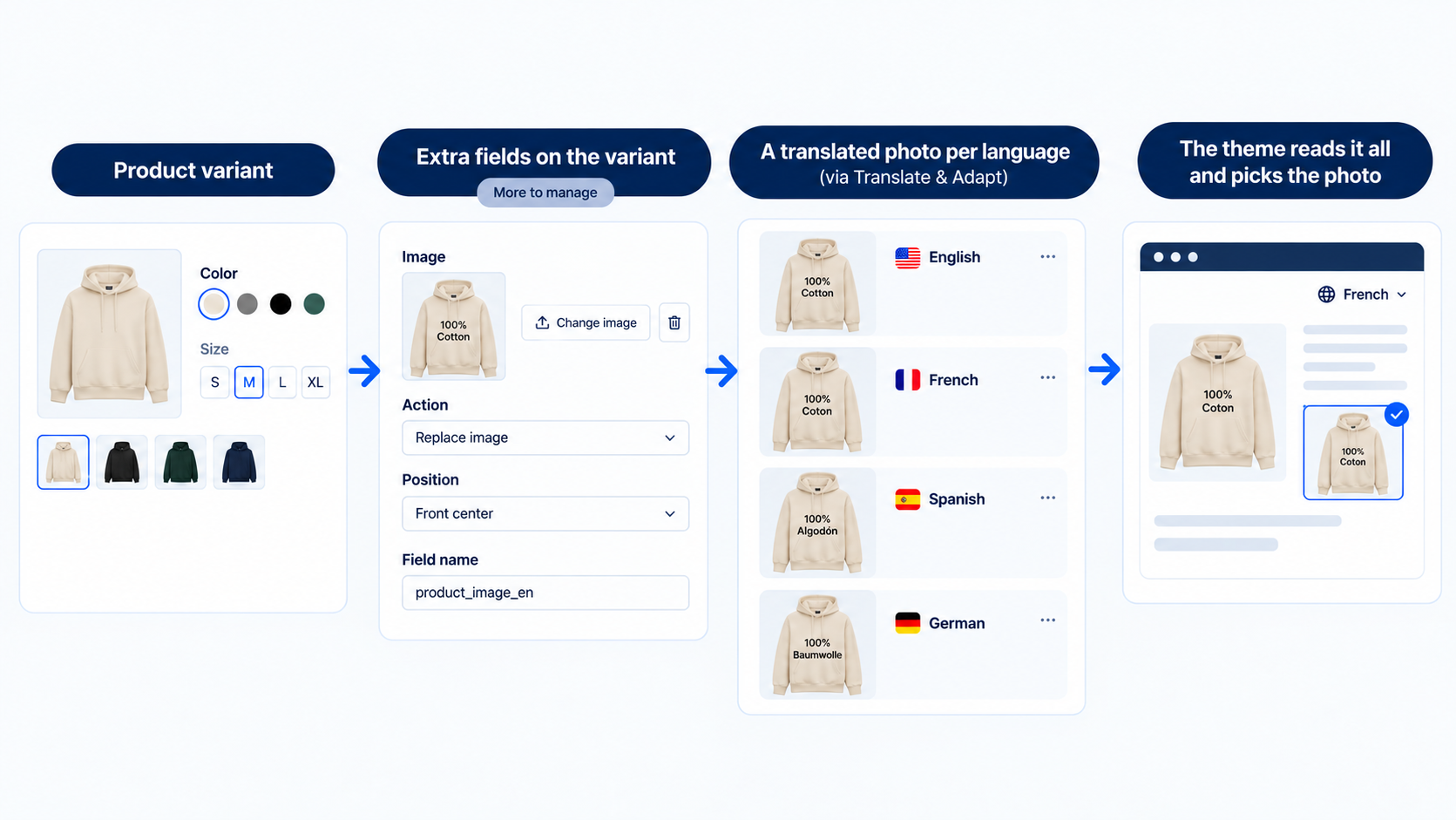
Our first try added a set of extra fields to each variant. Think of it as a small hidden form attached to every variant, where you fill in details about each translated photo. This is the kind of custom Shopify development that works, but costs you in upkeep.
For each photo, the owner had to set:
- The image
- An action (replace, remove, or leave alone)
- A position (where it should sit in the gallery)
- A name for the field
We also used the Shopify Translate & Adapt app to hold the translated photo for each language.
Here's the chain it created:
We built a working demo in a test store and showed the client.
It worked. But it was a lot of admin. For every product, the owner had to keep track of hidden fields, actions, positions, and translation entries. The more variants, images, and languages they added, the more boxes they had to fill in. It got tiring fast. So we looked for something lighter.
The simpler way: Use the Image ALT text
Instead of adding a new layer of data, we used something every Shopify photo already has: ALT text.
ALT text is the short description you can type for any image (it's mainly there for accessibility and SEO). We turned it into a simple label the theme can read.
The pattern is:
Product Name || Variant Name || Language
For example:
Product Name || White || DE
Product Name || White || FR
The || marks just split the label into parts. The three parts that matter are: the product, the variant, and the language. That's all the store needs to pick the right photo.
Default photos and fallback
Not every language needs its own photo. So you can leave the language off:
Product Name || White
- That's your normal photo. Your existing English photos keep working, untouched.
- Add a language only when you have a translated photo:
... || DEfor Germany,... || FRfor France.
That gives you a clean fallback:
- There's a translated photo → show it.
- There isn't → show the normal photo.
Nothing breaks either way.
How the store picks the right photo
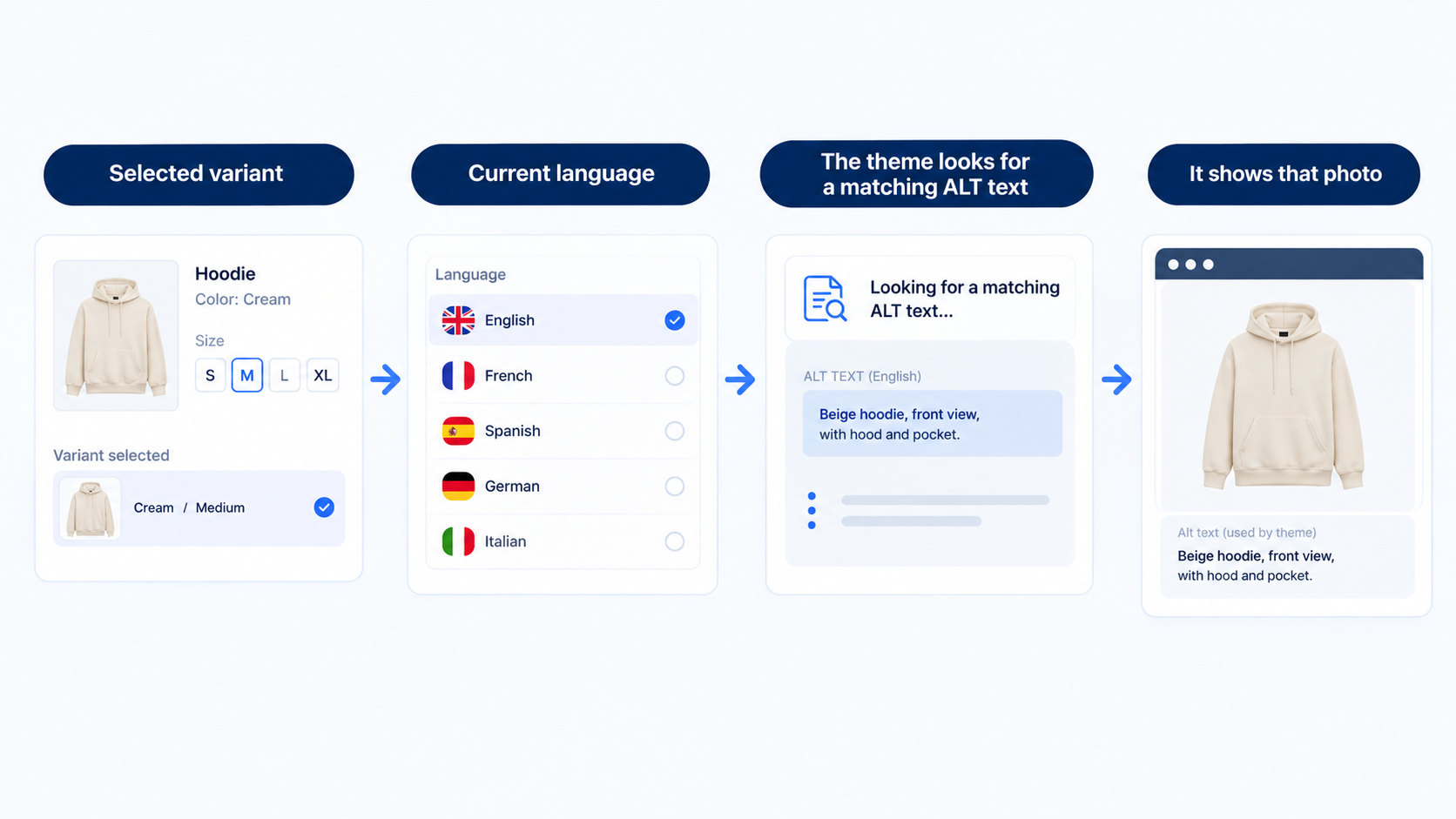
The ALT-text way still needs a little bit of code in the theme (this is normal Shopify theme customization work). The theme reads the image's ALT text and matches it to the current product, the selected variant, and the current language.
A few nice results of this:
- You can drop the extra fields. The hidden variant fields and the Translate & Adapt setup are no longer needed for this.
- You manage photos the normal way. Upload the photo, type the ALT text in the pattern, done.
- No "position" number to set. You just drag the photo where you want it in the gallery. Shopify handles the order.
Why the ALT-text way is easier
The real difference isn't the tech. It's how much work the store owner does day to day, and how easy the product page design stays to manage.
| First way: extra variant fields | Simpler way: ALT text | |
|---|---|---|
| Where photos live | Hidden fields on the variant | The normal product gallery |
| How languages are handled | Translate & Adapt entries | A simple ALT-text label |
| Owner has to manage | Fields, actions, positions, translation entries | Photos, ALT text, gallery order |
| Photo order set by | A manual position number | Drag and drop |
| Needs Translate & Adapt | Yes | No |
| Needs a bit of theme code | Yes | Yes |
| Work as you add languages | Grows fast | Stays small |
Both give you the same result: the right photo per variant and language. The second way just gets you there with far less fiddling.
The point: both work. The ALT-text way keeps everything on Shopify's normal product screen, so anyone on your team can manage it.
A quick example
Say the product is an Alpine Merino Beanie and you're looking at the White variant.
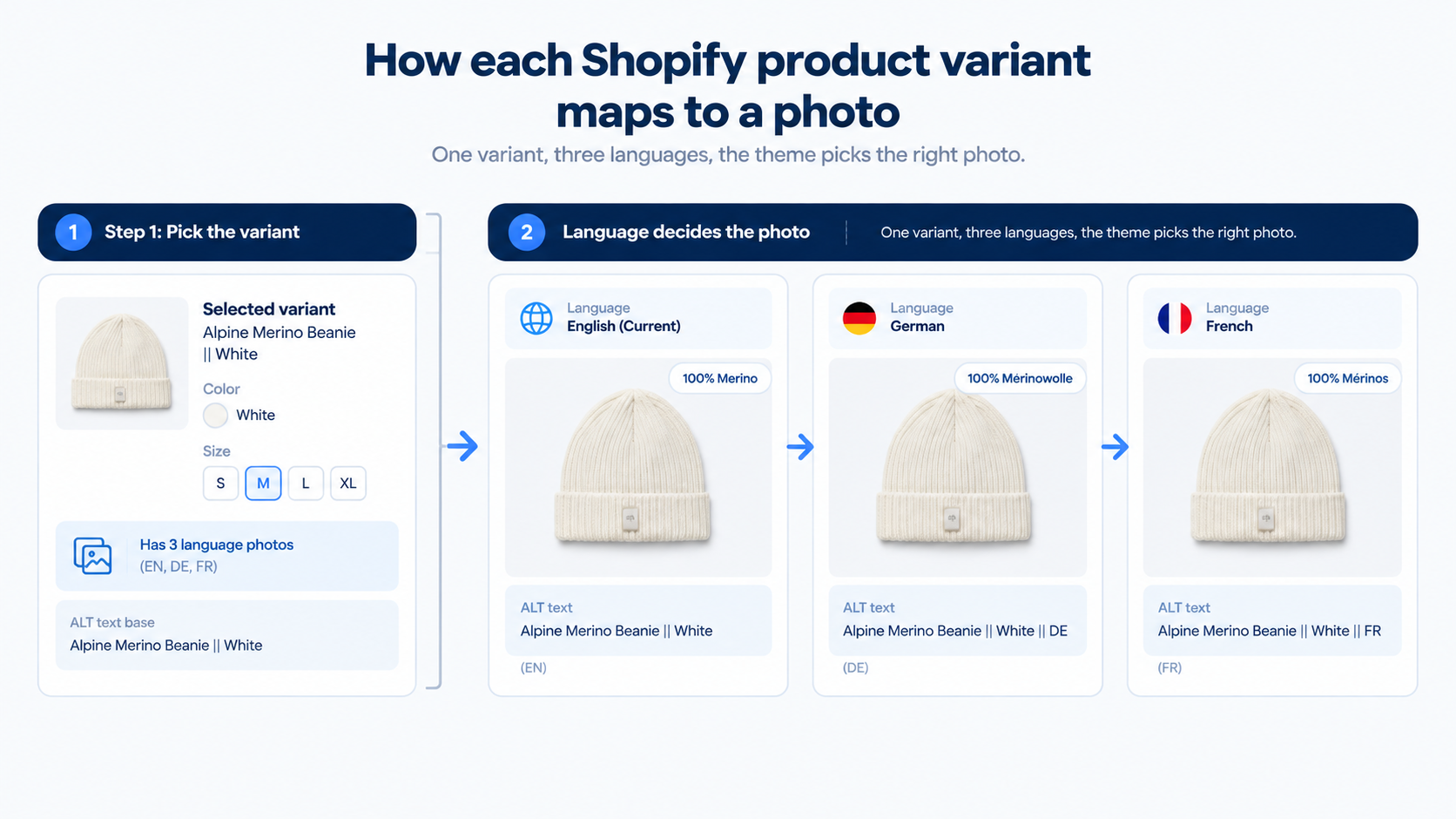
Here's how it all maps out:
| Variant | Country/language | ALT text | What shows |
|---|---|---|---|
| White | Default / English | Alpine Merino Beanie || White |
Normal photo |
| White | Germany (DE) | Alpine Merino Beanie || White || DE |
German photo |
| White | France (FR) | Alpine Merino Beanie || White || FR |
French photo |
| White | Spain (no photo yet) | No Spanish label | Falls back to the normal photo |
So when someone views the White beanie on the German store, they get the German photo. On the French store, the French one. And if you never made a Spanish photo, they just see the normal one. You never have to build a separate gallery for every country.
Translate the hero image and size guide the same way
The gallery photos aren't the only images on a product page with words on them. Two more come up on almost every store, and the same ALT-text trick handles both. So this isn't only about variant photos; it's about every image on the page that carries text.
The hero image
The hero image is the big lifestyle or feature image at the top, and it often has a headline or callout printed on it, like "Stay warm all winter."
- If that text is in English, it stays in English on every store unless you swap the image.
- With the same method, you give each language its own hero image and the theme shows the matching one.
- ALT text:
Hero || Beaniefor the default,Hero || Beanie || DEfor Germany,Hero || Beanie || FRfor France.
The size guide
Size charts are full of words: "chest," "length," "fits like," plus centimeters or inches.
- A German shopper reading an English size chart is exactly the kind of small friction that quietly loses a sale.
- So the size guide image gets a translated version per language too, handled the same way.
- ALT text:
Size Guide || Beanie, thenSize Guide || Beanie || DE,Size Guide || Beanie || FR.
Here's how both look side by side:
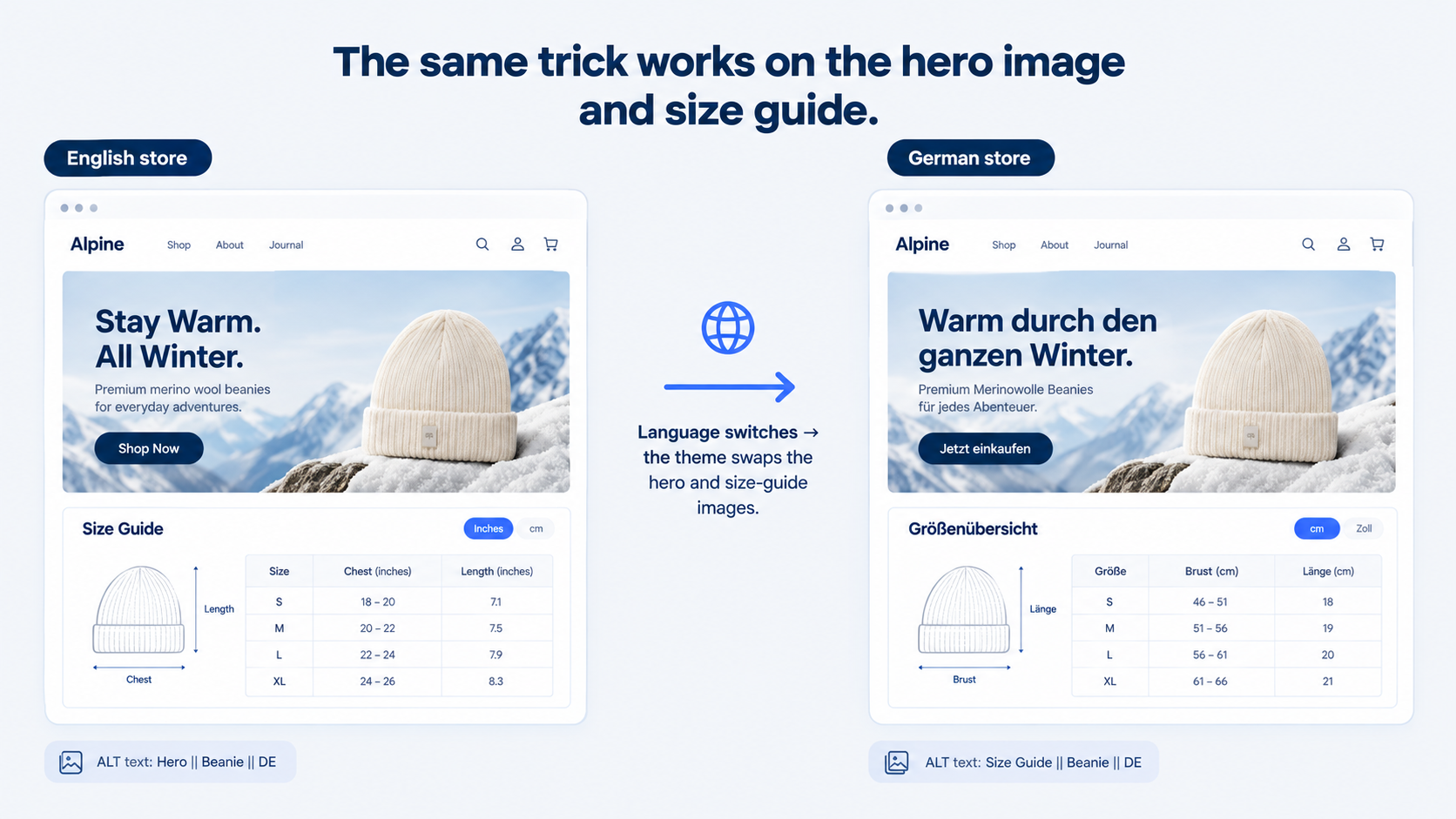
The theme reads the ALT text, checks the shopper's language, and shows the right hero and the right size guide. So the whole product page matches the language now, top to bottom, not just the gallery.
The point: once the theme can pick an image by language, you reuse it anywhere on the page that has text inside an image.
The bigger point: translation is more than words
This is the bit that's easy to forget. Most stores translate the text and stop there. The text inside the images gets left behind.
| What's on the page | Usually translated? | How |
|---|---|---|
| Product titles | Yes | Translate & Adapt or a translation app |
| Product descriptions | Yes | Translate & Adapt or a translation app |
| Variant names | Yes | Translate & Adapt |
| Menus and buttons | Yes | Theme translation |
| Checkout text | Yes | Shopify Markets |
| Text inside product photos | Often missed | Needs translated photos (this guide) |
If your photos carry words, those photos are part of the experience too. Getting the language in the photo to match the language of the store keeps the whole page feeling right. If you're still setting up your countries and languages, start with Shopify Markets first, then add this photo trick on top.
Frequently asked questions
What are Shopify variants?
Shopify variants are the different versions of one product, built from options like color, size, or style. A beanie in White, Black, and Yellow is three variants of one product, so each color is one Shopify variant. Every variant can have its own price, stock, and photos, which is exactly why product variants Shopify owners set up matter once you sell in more than one language.
Can Shopify variants show different images?
Yes. Each variant can be linked to its own photos, and the store shows those photos when a shopper picks that variant. This guide takes it one step further so the photos also change by language, not just by variant.
How do I add variants on Shopify?
Open the product in your Shopify admin, scroll to the Variants section, and click "Add options like size or color." Type the option name (for example, Color) and its values (White, Black, Yellow). Shopify then creates a product variant for each value, and you can set a price, stock, and photos for each one.
How do I add product variants in Shopify with different options?
Add more than one option in the same Variants section, such as Color and Size. Shopify combines them, so Color (3) and Size (2) give you six product variants in Shopify. You can then upload photos and assign them to each variant, which is the base this whole guide builds on.
How many variants can you have on Shopify?
A single product can have up to 2,048 variants on every Shopify plan, with up to 3 options. Shopify raised the old 100-variant limit for all merchants in 2025, so most stores never hit the ceiling.
Do I need the Shopify Translate & Adapt app for this?
Only for the first, heavier method. With the ALT-text way, you don't need it. You upload the translated photo in the normal gallery, type the ALT text, and the theme does the matching.
Why would I need a different photo for each language?
Because text inside a photo doesn't get translated when you translate the page. If your photos have labels, sizes, or notes on them, a shopper in Germany or France will still see the original language inside the picture unless you give them a translated photo.
What is the naming pattern for the photos?
Use Product Name || Variant Name || Language, for example Alpine Merino Beanie || White || DE. Leave the language off for the normal photo. The theme reads the parts split by || to pick the right photo.
What happens if a language has no photo?
It shows the normal photo instead. If a translated photo exists, it uses that. If not, it falls back. Nothing breaks.
Does this need a developer?
A little. The theme needs a small piece of code to read the ALT text and match it to the variant and language. Once that's in, you only deal with photos and ALT text, no code.
Where to go from here
Translated product photos are one of the last things most multi-country stores fix, and you don't need a heavy system to do it. A simple ALT-text pattern plus a little theme code gives you the right photo for every variant and language, while keeping your day-to-day work on Shopify's normal product screen.
If you want this set up on your store, or just a check of whether your photos and languages line up, book your free Shopify store audit, and we'll show you exactly what to fix.